
The Microsoft Outlook mobile app gives you access to your ThreeBIT-managed work email, calendar, and contacts on the go. This guide walks you through getting it set up on both iOS and Android devices.
Before you start
Check that the following are in place before you begin:
- A Microsoft 365 account provisioned by ThreeBIT. You will need your work email address and the password you received or set during activation.
- Multi-factor authentication (MFA) configured on your account. You will be asked to approve a sign-in prompt on a secondary device or via SMS.
- A stable internet connection — mobile data or Wi-Fi both work.
On iPhone and iPad
Install the Outlook app. Open the App Store, search for Microsoft Outlook, and install it. If your organisation uses a mobile device management solution, the app may already be deployed to your device.
Add your account. Open the app and tap Add Account. Enter your full Microsoft 365 work email address and tap Continue. The app will redirect you to a Microsoft sign-in screen.
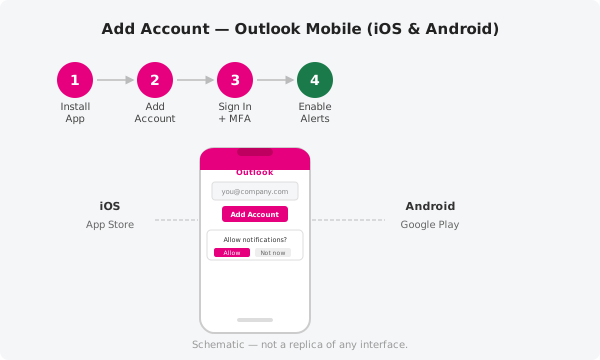
Sign in and approve MFA. Enter your password on the Microsoft sign-in screen. When the MFA prompt appears, approve it in your authenticator app or follow the SMS instructions.
Enable notifications. After sign-in, iOS will ask whether you want to allow notifications. Tap Allow so you receive alerts for new emails and calendar reminders. You can fine-tune which alerts you receive later under iOS Settings → Notifications → Outlook.
On Android
Install the Outlook app. Open the Google Play Store, search for Microsoft Outlook, and install it.
Add your account. Launch the app and tap Add Account. Enter your full work email address and tap Continue to reach the Microsoft sign-in screen.
Sign in and approve MFA. Type your password and complete the MFA verification when prompted — this could be a push notification, an app-generated code, or an SMS code.
Turn on notifications. Android will prompt you to allow notifications during or after setup. Grant the permission so you receive timely alerts. You can adjust notification behaviour under Android Settings → Apps → Outlook → Notifications at any time.
Official documentation
For the latest guidance and troubleshooting information, visit Microsoft's official help centre at https://support.microsoft.com.
Need a hand?
If you run into any problems during setup, open a support ticket and a ThreeBIT technician will assist you.