
Multi-factor authentication (MFA) adds a second layer of protection to your account. Even if someone else obtains your password, they cannot sign in without also having access to your phone. ThreeBIT requires MFA for all managed Microsoft 365 accounts because it is one of the most effective defences against unauthorised access.
Before you start
Have the following ready before you begin:
- A smartphone (iOS or Android) that you can keep with you when signing in to work services.
- Your Microsoft 365 work email address and the password set when your account was activated.
- A stable internet or mobile data connection on both your computer and your phone.
You do not need to install anything on your computer — the setup happens in a browser window alongside the Microsoft Authenticator app on your phone.
Step by step
Follow these steps to link the Authenticator app to your work account:
Install the app. Search for Microsoft Authenticator in the App Store (iPhone) or Google Play Store (Android) and install it. Open the app once it has finished installing.
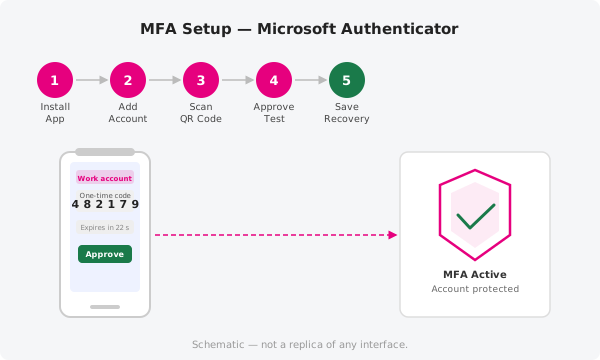
Add a work or school account. In the app, tap the + button and select Work or school account. The app will ask how you want to add the account — choose Scan a QR code if you have one, or Sign in to enter your credentials manually.
Connect to your account. On your computer, sign in to the Microsoft 365 security setup page when prompted (your IT administrator may send you a link, or you will be redirected automatically on first login). A QR code will appear on screen. Hold your phone up so the app can scan it. If you chose to sign in instead, enter your email address and password directly in the app.
Approve the test request. Once the account is linked, the setup wizard will send a test approval request to your phone. Open the Authenticator app and tap Approve to confirm. The wizard will show a success message when the test passes.
Save your recovery options. Follow any remaining prompts to register a backup phone number or an alternative email address. These recovery options let you prove your identity if you ever need to reset MFA access without a working phone.
Approving a sign-in
After setup, every time you sign in to a Microsoft 365 service you will receive a notification on your phone. Open the Authenticator app, review the sign-in details shown, and tap Approve if the request is yours. Never approve a prompt you did not initiate — if one arrives unexpectedly, deny it and contact ThreeBIT support.
The app also shows a six-digit one-time code under each account entry that refreshes every 30 seconds. Some services ask you to type this code instead of tapping Approve — both methods work the same way.
If you get a new phone
MFA is tied to the device where you installed the app. If you replace your phone, you will need to set up the Authenticator app again before you can sign in. Use your saved recovery options to verify your identity, or contact ThreeBIT support if you are locked out — a technician can reset your MFA registration so you can start fresh.
Official documentation
For the latest guidance from Microsoft on the Authenticator app and MFA setup, visit https://support.microsoft.com.
Need a hand?
If the QR code will not scan, the app is not receiving requests, or you cannot complete any of the steps above, open a support ticket and a ThreeBIT technician will assist you.