
If you have forgotten your password or your account is asking you to set a new one, Microsoft 365 provides a self-service reset tool that lets you regain access without having to call IT support. The process takes just a few minutes, provided your account has at least one verification method registered.
Before you start
The self-service reset tool requires your account to have at least one of the following already registered:
- The Microsoft Authenticator app linked to your account (see the MFA setup article for details).
- A backup phone number or alternative email address saved in your security settings.
If you have not yet set any of these up and you are locked out, skip to the If you're locked out section below.
Step by step
Follow these steps from any device with internet access — you do not need to be on a company network:
Go to the reset page. Open a browser and navigate to the Microsoft self-service password reset page. Your organisation's IT administrator may provide a direct link, or you will find a Forgot my password or Can't access your account? link on the standard Microsoft sign-in screen.
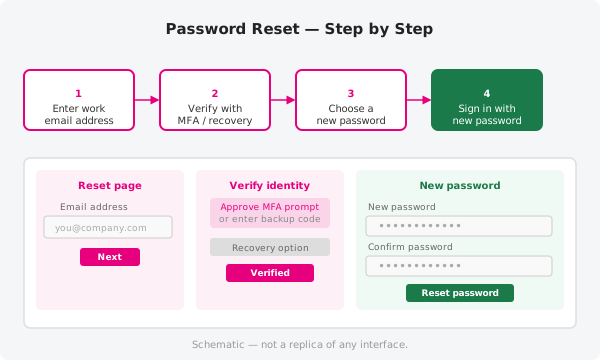
Enter your work email address. Type your full Microsoft 365 work address (for example,
firstname.lastname@yourcompany.com) and complete any CAPTCHA challenge presented. Then click Next.Verify your identity. Choose a verification method from those you registered. You may be asked to approve a push notification in the Microsoft Authenticator app, enter a code sent to your backup phone or email, or answer a security question. Follow the on-screen prompts for whichever method you select.
Choose a new password. Enter a new password in both fields provided. The page will indicate whether your choice meets the requirements — typically a minimum length and a mix of character types. If the password is rejected, try a longer phrase with a mix of letters, numbers, and symbols.
Sign in with the new password. Once the reset confirms success, go to the Microsoft 365 sign-in page and enter your email address and the new password. Approve the MFA prompt as usual to complete the sign-in.
If you're locked out
If you have no verification methods registered or cannot receive the MFA prompt, the self-service tool will not be able to help. In that case:
- Contact ThreeBIT support directly and a technician will verify your identity through another channel and reset your access.
- If your account is showing a locked status rather than a password issue, the lock usually clears automatically after a short waiting period — but support can also release it manually if you need access sooner.
Choosing a strong password
A good password is one that is difficult for others to guess but straightforward for you to remember. Some practical guidelines:
- Aim for at least twelve characters — longer is better.
- Mix lowercase letters, uppercase letters, numbers, and symbols.
- Avoid dictionary words on their own or common substitutions like
@fora. - Do not reuse a password you have used for any other service.
A passphrase — three or four unrelated words joined together — is often both long enough and easy to recall.
Official documentation
For Microsoft's current guidance on account recovery and password policies, visit https://support.microsoft.com.
Need a hand?
If the reset tool is unavailable, your account remains locked, or you run into any other problem, open a support ticket and a ThreeBIT technician will sort it out for you.