
This guide walks ThreeBIT-managed Microsoft 365 users through installing and signing in to Microsoft Teams for the first time, on both a Windows/macOS computer and an iOS or Android smartphone.
Before you start
Check that you have the following in place before you begin:
- A working Microsoft 365 account provisioned by ThreeBIT — you will need your work email address and the password you set (or were given) when the account was activated.
- Multi-factor authentication (MFA) configured on your account. You will be asked to approve a prompt during your first sign-in.
- A stable internet connection on whichever device you are setting up.
On your computer
Follow these steps on a Windows or macOS machine:
Download and install Teams. Visit the Microsoft Teams download page and grab the installer for your operating system, then run it. If your organisation has already deployed Teams through a managed device policy, it may already be installed — check your Start menu or Applications folder.
Open Teams and enter your email. Launch the application. Click Sign in and type your full Microsoft 365 work email address, then click Next.
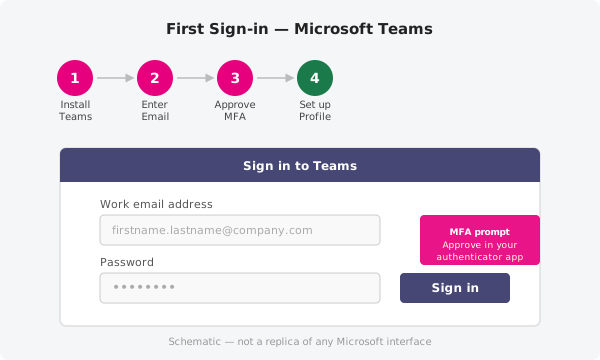
Enter your password and approve MFA. Type your password on the next screen. Once you submit it, your authenticator app (or SMS) will receive a prompt — approve it to complete the sign-in.
Configure your profile and join a team. After signing in, take a moment to upload a profile photo and review your notification settings (Settings → Notifications). Your IT administrator may have already added you to the relevant teams automatically; if not, you can join or request access from the Teams sidebar.
On your phone
The process on iOS and Android is nearly identical:
- Install the Microsoft Teams app from the App Store (iOS) or Google Play Store (Android).
- Open the app, tap Sign in, and enter your work email address.
- Enter your password on the next screen and approve the MFA prompt when it appears.
- Teams will load your workspace. Tap the notification bell in the top bar to adjust which alerts you receive on your phone.
Official documentation
For the latest information and troubleshooting steps, refer to Microsoft's official guidance at https://support.microsoft.com.
Need a hand?
If you cannot sign in or do not see your expected teams, open a support ticket and a ThreeBIT technician will investigate for you.