
This guide is for ThreeBIT-managed Microsoft 365 users who want to connect their work mailbox to Outlook on a Windows PC. The process typically completes in a few minutes and requires no manual server configuration.
Before you start
Make sure you have everything ready before opening Outlook:
- A working Microsoft 365 account provisioned by ThreeBIT (your IT administrator will have provided your email address and a temporary password or an activation link).
- Multi-factor authentication (MFA) set up on your account — you will need to approve a prompt on your phone or authenticator app during sign-in.
- Outlook installed on your Windows PC (any version included with Microsoft 365 is supported).
Step by step
Follow these steps to add your mailbox:
Open Outlook. If this is the first time you have launched Outlook on this PC, a setup wizard will appear automatically. If Outlook is already in use with another account, go to File and then select Add Account.
Enter your email address. Type your full Microsoft 365 address (for example,
firstname.lastname@yourcompany.com) and click Connect. Outlook will detect that the address belongs to Microsoft 365 and proceed automatically.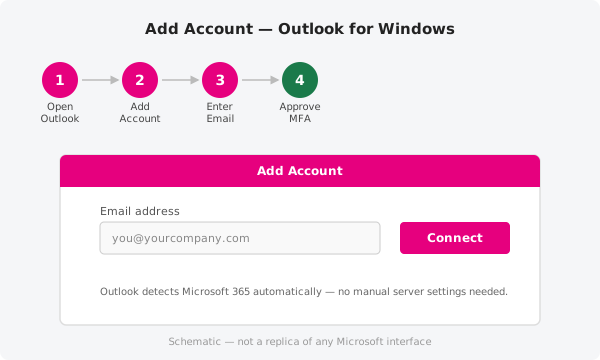
Sign in and approve MFA. A Microsoft sign-in window will appear. Enter your password and complete the multi-factor authentication prompt — this might be a notification in the Microsoft Authenticator app, a code sent by SMS, or a phone call depending on your organisation's settings.
Wait for synchronisation to finish. Outlook will configure itself and begin downloading your emails, calendar, and contacts. Depending on the size of your mailbox and the speed of your connection, this can take a few minutes to several hours for the initial sync.
If automatic setup doesn't work
On some older installations or managed corporate devices, Outlook may not be able to auto-discover your mailbox. In that case you can add the account manually using the settings below.
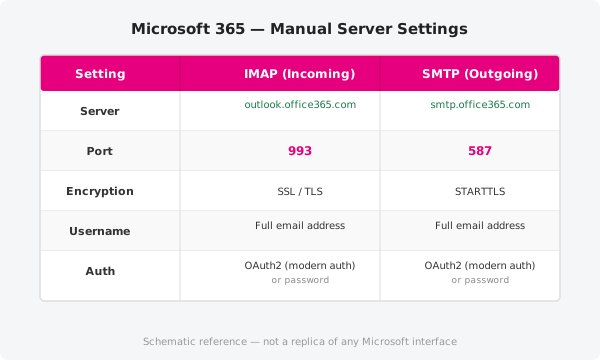
| Setting | IMAP (incoming) | SMTP (outgoing) |
|---|---|---|
| Server | outlook.office365.com |
smtp.office365.com |
| Port | 993 |
587 |
| Encryption | SSL/TLS | STARTTLS |
| Username | Your full email address | Your full email address |
| Authentication | Modern auth (OAuth2) where supported; password otherwise | Modern auth (OAuth2) where supported; password otherwise |
Enter these values in Outlook's Account Settings under Server Settings after choosing to set up the account manually.
Official documentation
For the most current step-by-step instructions and troubleshooting, consult Microsoft's official guidance at https://support.microsoft.com.
Need a hand?
If you run into any trouble, open a support ticket and a ThreeBIT technician will get you sorted.