
This guide helps ThreeBIT-managed Microsoft 365 users connect their work mailbox to Outlook on a Mac. Outlook for Mac supports automatic discovery of Microsoft 365 accounts, so in most cases you will not need to enter any server addresses by hand.
Before you start
Have the following ready before you open Outlook:
- A Microsoft 365 account provisioned by ThreeBIT. Your IT administrator will have given you your work email address and either a temporary password or an activation link.
- Multi-factor authentication (MFA) already configured — you will be prompted to verify your identity during sign-in.
- Outlook for Mac installed from the Mac App Store or via your Microsoft 365 subscription. Any current version works.
Step by step
Follow these steps to add your mailbox:
Open Outlook. If this is the first time you launch Outlook on this Mac, a welcome screen appears straight away. If Outlook is already set up with another account, click Outlook in the menu bar, choose Settings, and then open Accounts.
Add an account. Click Add Account (or the + button in the accounts list). A dialog will prompt you for an email address.
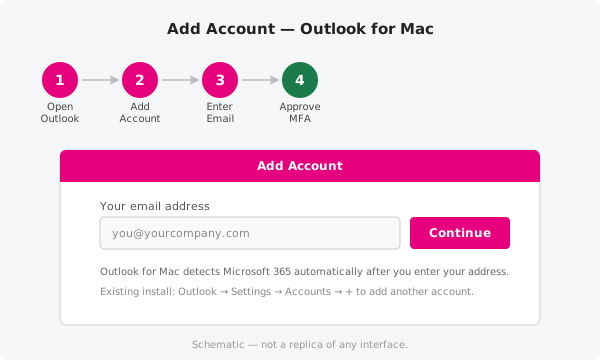
Enter your email and sign in. Type your full Microsoft 365 address and press Continue. Outlook will redirect you to a Microsoft sign-in page. Enter your password there and approve the MFA prompt on your phone or authenticator app.
Wait for the sync. Once authenticated, Outlook configures itself and begins downloading your emails, calendar events, and contacts. The first sync can take anywhere from a minute to an hour depending on how large your mailbox is.
If automatic setup doesn't work
On some managed devices or older Outlook installations, auto-discovery may not succeed. You can add the account manually using the settings below.
| Setting | IMAP (incoming) | SMTP (outgoing) |
|---|---|---|
| Server | outlook.office365.com |
smtp.office365.com |
| Port | 993 |
587 |
| Encryption | SSL/TLS | STARTTLS |
| Username | Your full email address | Your full email address |
| Authentication | Modern auth (OAuth2) where supported; password otherwise | Modern auth (OAuth2) where supported; password otherwise |
To enter these values, go to Outlook → Settings → Accounts, click the + button, and choose Other Email or Add an email account → set up manually.
Official documentation
For up-to-date instructions and troubleshooting tips, refer to Microsoft's official guidance at https://support.microsoft.com.
Need a hand?
If you get stuck at any step, open a support ticket and a ThreeBIT technician will be happy to help.