
Mozilla Thunderbird is a free, open-source email client that works well with Microsoft 365 via IMAP. This guide takes you through the account setup process for ThreeBIT-managed Microsoft 365 mailboxes, including the modern authentication step that keeps your account secure.
Before you start
Make sure you have the following ready:
- A Microsoft 365 account provisioned by ThreeBIT — you will need your work email address and password.
- Multi-factor authentication (MFA) configured on your account.
- Thunderbird installed. Version 115 (Supernova) or newer is recommended as it includes improved OAuth2 support.
- A stable internet connection.
Step by step
Open Thunderbird and start the account wizard. If Thunderbird is freshly installed, the account setup wizard opens automatically. Otherwise, go to the application menu, choose New, and then Existing Email Account.
Enter your details. Fill in your full name as you want it to appear to recipients, your Microsoft 365 email address, and your password. Click Continue — Thunderbird will attempt to look up the server settings automatically.
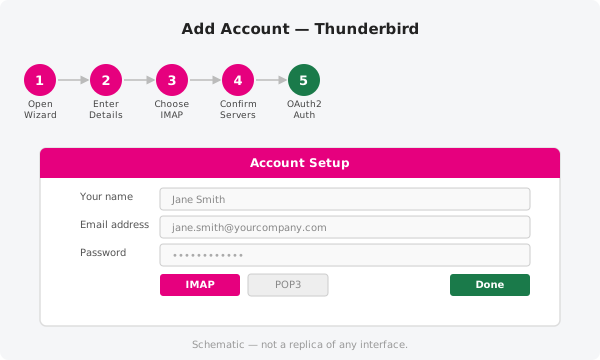
Choose IMAP. When Thunderbird presents the discovered settings, select IMAP (not POP3). IMAP keeps your messages on the server so they stay in sync across all your devices.
Confirm the server settings. Review the pre-filled values. If they do not match the details in the table below, correct them manually before proceeding. Click Done or Finish once everything looks right.
Authorise with your Microsoft account. A Microsoft browser-based sign-in window will open. Enter your password and approve the MFA prompt. This OAuth2 flow grants Thunderbird secure access without storing your password in plain text.
Server settings
Use these values if Thunderbird does not detect them automatically or if you need to verify what has been saved.
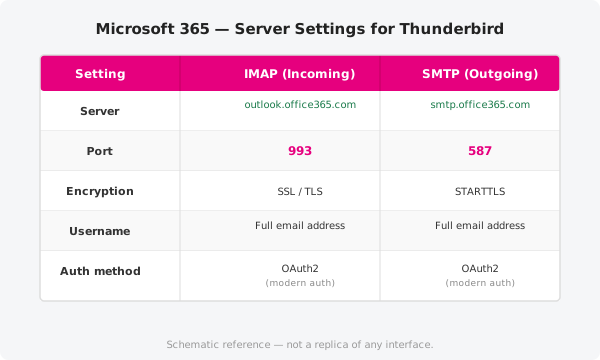
| Setting | IMAP (incoming) | SMTP (outgoing) |
|---|---|---|
| Server | outlook.office365.com |
smtp.office365.com |
| Port | 993 |
587 |
| Encryption | SSL/TLS | STARTTLS |
| Username | Your full email address | Your full email address |
| Authentication | OAuth2 | OAuth2 |
To review or update these settings in Thunderbird, open Account Settings, select your account, and then choose Server Settings (incoming) or Outgoing Server (SMTP) in the left-hand panel.
Note on modern authentication
Thunderbird uses OAuth2 — the same industry-standard authorisation protocol that web browsers and mobile apps use — to connect to Microsoft 365. This means Thunderbird never stores your Microsoft password directly; instead it holds a token that your organisation can revoke at any time via the Microsoft 365 admin portal. If your organisation enforces conditional access policies, your IT administrator may need to approve Thunderbird as a client before the OAuth2 flow completes successfully.
Official documentation
For the latest guidance on configuring Thunderbird and troubleshooting connection issues, consult Microsoft's official documentation at https://support.microsoft.com.
Need a hand?
If the OAuth2 window does not appear or the account fails to connect, open a support ticket and a ThreeBIT technician will help you get sorted.