
Some email clients and devices do not pick up the correct settings automatically when you add a Microsoft 365 account. This page is a plain reference you can consult whenever you are asked to enter server addresses, port numbers, or security settings by hand. You do not need to read it from top to bottom — just find the row that matches the protocol your app uses.
IMAP and SMTP settings
Use these values when an app asks you to configure incoming (IMAP) and outgoing (SMTP) mail separately:
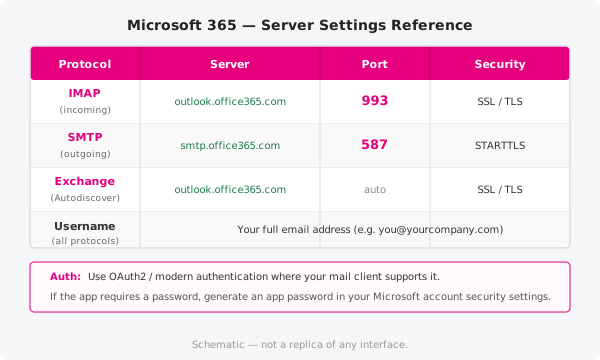
| Protocol | Server | Port | Security | Username |
|---|---|---|---|---|
| IMAP (incoming) | outlook.office365.com |
993 |
SSL/TLS | Full email address |
| SMTP (outgoing) | smtp.office365.com |
587 |
STARTTLS | Full email address |
Your username is always your full email address, for example firstname.lastname@yourcompany.com. Leave the domain field blank unless your app asks for it explicitly.
Exchange / Autodiscover
Apps that support the Exchange ActiveSync or EWS protocols — such as Apple Mail, Outlook Mobile, and the built-in Android mail client — can often discover all settings automatically. When manual input is required, use:
- Server:
outlook.office365.com - Username: your full email address
- Security: SSL/TLS (port determined automatically)
The Autodiscover endpoint is https://autodiscover-s.outlook.com/autodiscover/autodiscover.xml. Most apps query this behind the scenes; you rarely need to enter it directly.
Modern authentication (OAuth2)
Where your email client offers it, choose OAuth2 or "modern authentication" instead of entering your password directly. With OAuth2, you sign in through a Microsoft browser prompt and grant the app a token. This approach is more secure because:
- Your actual password never passes through the app.
- You can revoke access for a specific device without changing your password.
- It works with multi-factor authentication without requiring app passwords.
If an older app does not support OAuth2, you will need to either use a password or generate an app password through your Microsoft account security settings. Note that Microsoft is progressively disabling basic (password-only) authentication for Exchange connections, so choosing an app with OAuth2 support is the better long-term option.
Which method should I use?
| Situation | Recommended approach |
|---|---|
| Outlook (Windows or Mac) | Exchange / Autodiscover — fully automatic |
| Apple Mail or iOS Mail | Exchange via System Settings / Mail Accounts |
| Gmail app on Android | Exchange and Office 365 option in Gmail |
| Thunderbird or other desktop client | IMAP + SMTP with OAuth2 |
| Older app without OAuth2 support | IMAP + SMTP with an app password |
| Mobile device management (MDM) profile | Exchange, configured by your IT administrator |
If you are unsure which method your app uses, check its account-setup screen. A prompt for separate "incoming" and "outgoing" server details means it uses IMAP/SMTP. A single server field with no distinction usually means Exchange.
Official documentation
For full configuration guidance and the latest troubleshooting information from Microsoft, visit https://support.microsoft.com.
Need a hand?
If you are having trouble connecting your email client even after entering these settings, open a support ticket and a ThreeBIT technician will help you diagnose the issue.