
Apple Mail and the iOS Mail app both include built-in support for Exchange accounts, which means connecting a ThreeBIT-managed Microsoft 365 mailbox is straightforward. You do not need to look up server addresses or configure ports in most cases — the device discovers everything automatically once you sign in.
Before you start
Check that the following are in place before you begin:
- Your Microsoft 365 account is active and has been provisioned by ThreeBIT. You should have your full work email address and either a password or an activation link from your IT administrator.
- Multi-factor authentication is already set up on your account. When you sign in, you will be asked to confirm your identity on a second device — usually through an authenticator app or a text message.
- On a Mac, make sure you are running macOS Ventura or later for the smoothest experience. On an iPhone or iPad, iOS 16 or later is recommended.
On macOS
Follow these steps to add your mailbox to the Mail app on a Mac:
Open System Settings. Click the Apple menu in the top-left corner and choose System Settings (or System Preferences on older macOS versions). Scroll down and select Internet Accounts.
Add a new account. Click the Add Account button. A list of account types will appear.
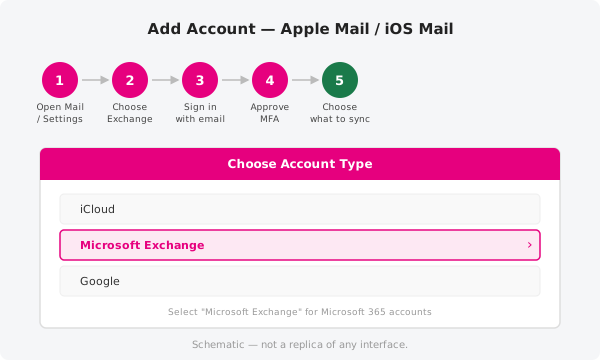
Choose Microsoft Exchange. Select Microsoft Exchange from the list. Enter your name and your full Microsoft 365 email address, then click Sign In.
Sign in through Microsoft. A browser-style sign-in window will appear. Enter your email address and password. If your organisation uses single sign-on or a custom login page, follow those steps as prompted.
Approve the MFA prompt. You will receive a notification on your authenticator app, or a code by text message. Approve or enter it to continue.
Choose what to sync. After sign-in, macOS will ask which services you want to enable for this account. Enable Mail, and optionally Contacts and Calendars as well. Click Done.
Your mailbox will now appear in Apple Mail. The initial sync may take a few minutes depending on mailbox size.
On iPhone and iPad
Adding your mailbox on an iPhone or iPad follows a similar path through the Settings app:
Open Settings and scroll down to Mail. Tap Accounts, then tap Add Account.
Choose Microsoft Exchange from the account type list. Enter your full work email address and tap Next.
Sign in with Microsoft. You will be taken through the Microsoft sign-in flow. Enter your password and tap Sign in.
Approve the MFA prompt. Confirm the request on your authenticator app, or enter the code sent to you by text.
Choose what to sync. Toggle on Mail, and any other services such as Contacts or Calendars that you want to access on this device. Tap Save.
Your mailbox is now connected. Pull down in the Mail app inbox to trigger the first sync.
If you're asked for server settings
In most cases the device will detect the correct settings automatically. If you are prompted to enter server details manually, use the following values:
| Setting | Value |
|---|---|
| Server (Exchange) | outlook.office365.com |
| IMAP server | outlook.office365.com |
| IMAP port | 993 |
| IMAP security | SSL/TLS |
| SMTP server | smtp.office365.com |
| SMTP port | 587 |
| SMTP security | STARTTLS |
| Username | Your full email address |
| Authentication | Modern auth (OAuth2) where supported; password otherwise |
If you regularly connect email apps that require you to enter these values, the server settings reference article has the full table.
Official documentation
For the latest guidance and troubleshooting steps from Apple and Microsoft, visit https://support.microsoft.com.
Need a hand?
If the account fails to connect or you cannot get past the sign-in screen, open a support ticket and a ThreeBIT technician will help you sort it out.