
The Gmail app on Android can connect to Microsoft 365 work accounts directly. It handles the Exchange protocol that corporate mailboxes rely on, so you get push email, calendar items, and contacts without needing a separate Outlook installation. The setup takes just a few minutes.
Before you start
Have the following ready before you open the Gmail app:
- Your full Microsoft 365 email address and password, provided by ThreeBIT or your IT administrator.
- Multi-factor authentication already configured on your account. When you sign in you will need to approve a prompt on your phone or authenticator app.
- The Gmail app updated to a recent version. Older versions may show slightly different menu labels, but the steps are the same in substance.
Step by step
Open the Gmail app. Tap the profile picture or initial in the top-right corner of the inbox. In the menu that appears, tap Add another account.
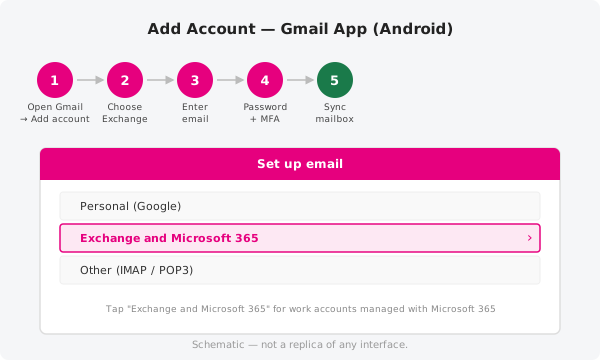
Choose Exchange and Office 365. On the account type screen, select Exchange and Office 365. This option works for all Microsoft 365 work and school accounts.
Enter your email address. Type your full work email address (for example,
firstname.lastname@yourcompany.com) and tap Next.Enter your password and approve MFA. A sign-in page will load inside the app. Enter your password, then complete the multi-factor authentication step — this is typically a notification in Microsoft Authenticator or a one-time code sent to your phone.
Allow access and let it sync. After sign-in, the app will ask to access your account. Confirm the permissions and wait while Gmail downloads your mailbox. Depending on the size of your inbox, the first sync can take a few minutes.
Your Microsoft 365 email, and optionally your calendar and contacts, are now available in the Gmail app. You can switch between accounts using the profile icon in the top-right corner.
If you need to enter settings manually
Most devices will configure the connection automatically. If the Gmail app cannot detect the settings for your domain, you may be presented with a manual configuration screen. Use the values below:
| Setting | Value |
|---|---|
| Exchange server | outlook.office365.com |
| IMAP server | outlook.office365.com |
| IMAP port | 993 |
| IMAP encryption | SSL/TLS |
| SMTP server | smtp.office365.com |
| SMTP port | 587 |
| SMTP encryption | STARTTLS |
| Username | Your full email address |
| Authentication | OAuth2 (modern auth) where offered; password otherwise |
If you need these values for other apps too, see the server settings reference article.
Official documentation
For the most up-to-date guidance from Microsoft, including troubleshooting tips for Exchange connectivity on Android, visit https://support.microsoft.com.
Need a hand?
If you cannot get past the sign-in step, or the account shows errors after it has been added, create a support ticket and a ThreeBIT technician will take a look.