
A shared mailbox is an email address that a team or group of people can read and write to together. Instead of forwarding messages to individual inboxes, a shared mailbox keeps everything in one place — making it easier to manage enquiries, internal aliases, or department addresses without anyone losing track of a reply. Shared calendars work the same way, letting multiple people view and edit the same set of appointments.
Before you start
Access to a shared mailbox is not automatic — your IT administrator must first grant you permission. If you are expecting access to a shared mailbox or calendar but it has not appeared yet, ask your administrator to check that your account has been added.
Once permission is in place, the steps below will get it visible in Outlook.
In Outlook on the desktop
Follow these steps on a Windows or macOS computer:
Open Outlook and go to Account Settings. In the ribbon, click File, then select Account Settings and again Account Settings in the dropdown. In the dialog that opens, choose your Microsoft 365 account and click Change.
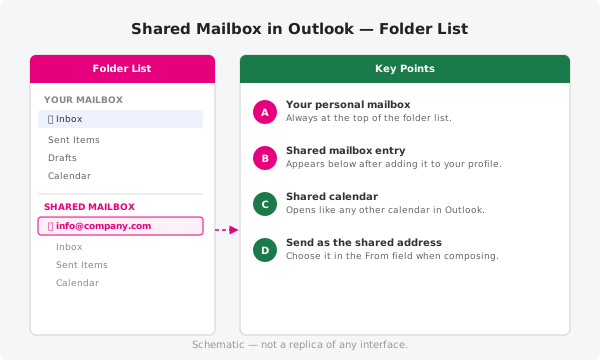
Add the shared mailbox. In the account settings dialog, click More Settings, then navigate to the Advanced tab and click Add. Type the email address of the shared mailbox (for example,
info@yourcompany.com) and click OK. Close the dialogs and click Finish.Find it in the folder list. After Outlook restarts or refreshes, the shared mailbox will appear below your own mailbox in the folder list on the left. Click on it to expand its folders — you will see an Inbox, Sent Items, and other standard folders, all shared with anyone else who has access.
Open the shared calendar. In the navigation bar at the bottom left, switch to the Calendar view. The shared calendar will appear in the Other calendars or People's calendars list. Click on it to overlay it with your own calendar, or open it side by side.
In Outlook on the web
If you use Outlook through a browser rather than the desktop app, shared mailboxes you have been granted access to will usually appear automatically in the left-hand folder list. If the shared mailbox does not appear:
- Click your profile icon in the top right corner and choose Open another mailbox.
- Type the address of the shared mailbox and press Enter.
- The shared mailbox opens in a separate browser tab. You can pin it to your favourites in the folder list for faster access next time.
To reach the shared calendar in Outlook on the web, open the calendar view and look for the shared address under Other people's calendars in the left-hand panel.
Sending as the shared address
When composing a new message or replying to an email in the shared inbox, you can send from the shared address rather than your own personal address:
- Open a new email or select Reply.
- Look for a From field at the top of the message form. If it is not visible, click Options and then Show From.
- Click the From address and choose the shared mailbox address from the list, or type it in. The message will be sent from and replied to the shared address.
Replies sent this way are also stored in the shared mailbox's Sent Items folder, so the whole team can see them.
Official documentation
For Microsoft's full guidance on shared mailboxes and delegation in Outlook, visit https://support.microsoft.com.
Need a hand?
If the shared mailbox does not appear after following these steps, or you do not have a From option when composing, open a support ticket and a ThreeBIT technician will check your permissions and help you get set up.